
TL;DR: TradingVox is a voice AI trading assistant. Link Finn, set Chart target to TradingView Desktop, start a voice session, and talk: "pull up NVDA on the 5-minute, add a 50 EMA, alert me if it crosses 230." Vox answers from live EZPZ data and Finn does the clicking.
What is TradingVox?
TradingVox is the voice layer of the EZPZ Trading ecosystem. You ask about the market out loud and Vox answers out loud, using 50+ tools wired to live EZPZ data: options flow, GEX/DEX/VEX, dark pool prints, short interest, news sentiment and key levels. Through Finn, the AI inside the EZPZ TV Connector desktop app, it can also drive your real TradingView chart with 105 chart tools.
Why voice AI agents are the new trading workflow
AI assistants have moved from answering to doing. Instead of reading a reply and then clicking through menus yourself, you describe the outcome and the agent carries it out. For traders, that removes the worst part of a fast market: tabbing between a flow scanner, a news feed and a chart while the move happens without you.
With Vox and Finn, one sentence covers the whole loop. You ask, it checks live data, tells you what it sees, and changes your chart, all while your eyes stay on price.
What you need
- A TradingVox account
- TradingView Desktop open with your usual layout
- The EZPZ TV Connector desktop app (Finn lives here)
- A microphone and a modern browser (Chrome or Edge for the best speech recognition)
Step 1: Link Finn (about 2 minutes)
- In TradingVox, open Settings → Integration → TradingView / Finn and choose Link Finn.
- A short-lived pairing code appears.
- In the EZPZ TV Connector, open Settings → Link TradingVox and enter the code.
- Settings now shows Linked ✓. If it says Linked — desktop app not open, open the Connector.
Linking is a pairing code, not a login to TradingView, and you can unlink at any time. Full walkthrough: Link Finn, then talk to your TradingView.
Step 2: Point Vox at your chart
Under Voice & Mode → Chart target, choose TradingView Desktop. Commands like "draw on my chart" then go to Finn and your real workspace. Choose Embedded instead if you want Vox to drive the chart on the TradingVox page (no Connector needed). When to use which.
Step 3: Start a new voice session
Finn's tools attach when a session starts, so if you linked mid-conversation, start a fresh one. Then just talk.
Step 4: Talk to your chart
| You want to | Say |
|---|---|
| Change symbol and timeframe | "Pull up NVDA on the 5-minute" |
| Add or remove indicators | "Add a 50 EMA" / "Remove RSI" |
| Draw levels | "Mark 230 as resistance" |
| Set alerts | "Alert me if NVDA crosses 230" |
| Review a session | "Replay TSLA from this morning" |
No menus and no command syntax: speak naturally and Finn decides how to drive TradingView. More examples in voice commands Finn can run today.
Real session: one sentence, done
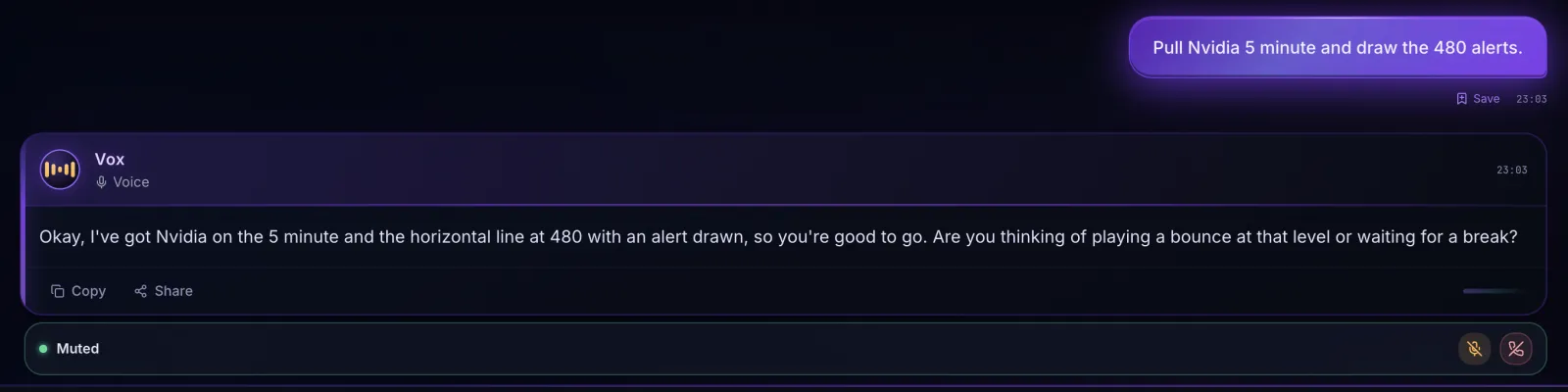
This is an unedited session from the EZPZ TV Connector. One spoken request, and Vox confirms what Finn did:
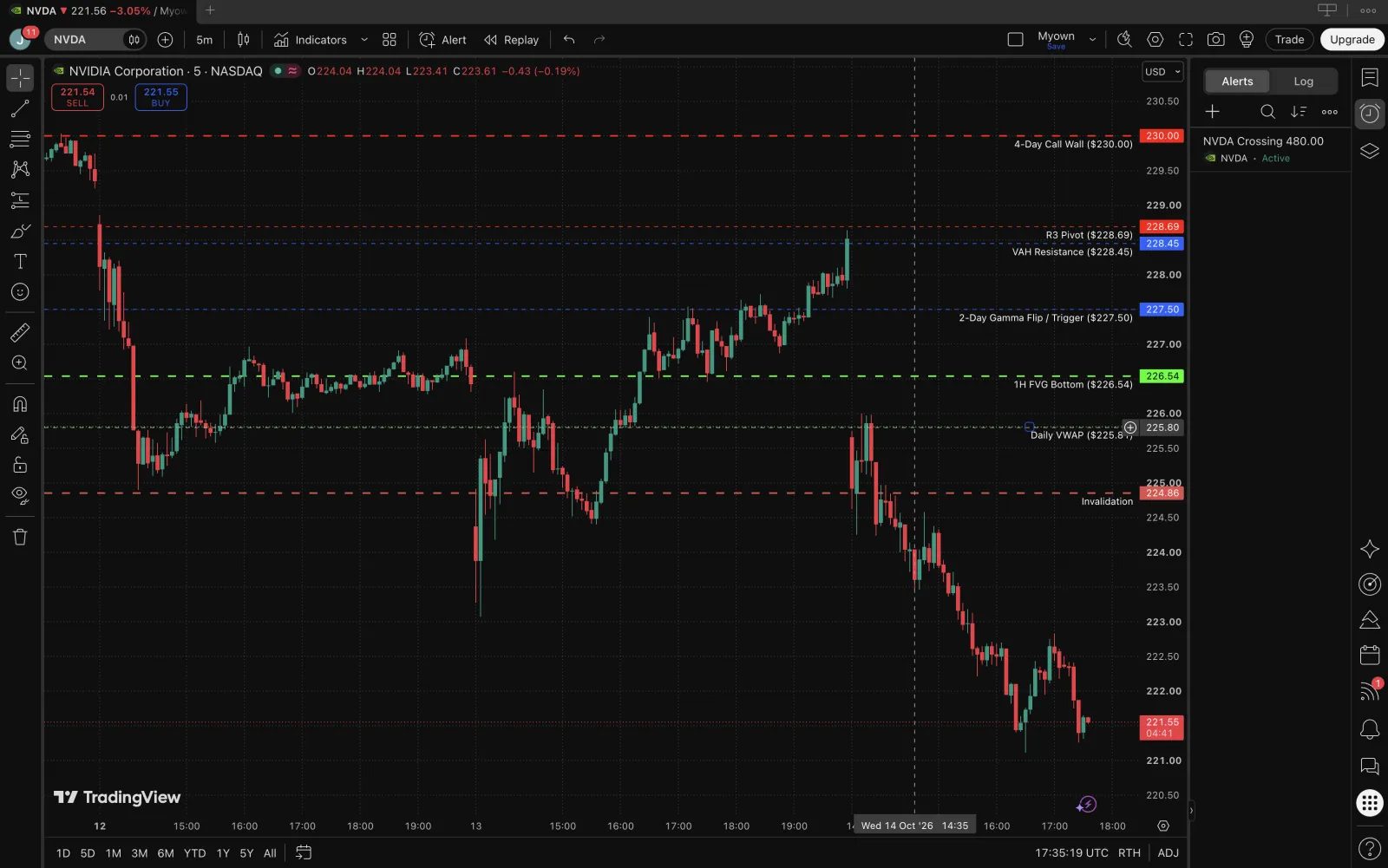
And here is the result in TradingView Desktop: NVDA on the 5-minute, key levels drawn from live data (call wall, gamma flip, VWAP, invalidation), and the new alert showing as active in the Alerts panel.
The power move: data first, then the chart
The real advantage is combining live data with chart control in one conversation:
- You: "What's the flow on NVDA today?" Vox reads options flow and dark pool activity from EZPZ and tells you what stands out.
- You: "Where are the key levels?" Vox pulls levels from live data rather than guessing a number.
- You: "Mark those on my chart and alert me if it breaks the top one." Finn draws them and sets the alert in TradingView.
Want it to teach you while you trade? Switch to Mentor mode for coaching, or Trading Desk for fast, pro-style commentary. Compare the modes.
Troubleshooting
- "It didn't draw anything." Check Chart target matches the chart you're looking at, and that Finn shows Linked ✓, not desktop app not open.
- "Finn isn't responding." If you linked during a conversation, start a new voice session.
- "It's taking a while." Heavier chart requests can take 15–20 seconds. Finish one chart request before stacking the next.
- "It asked me to allow something." Some destructive TradingView actions need an on-screen allow in the Connector. That's on purpose.
What it won't do
- No trade execution. TradingVox doesn't place or route orders or connect to a brokerage account.
- Not an adviser. It gives an honest read from live data, but never tells you how much to buy or promises an outcome.
- No made-up numbers. If something isn't connected, it says so. Everything spoken is also written to an on-screen transcript.
FAQ
Is connecting Finn free?
Yes. Live EZPZ market data and EZRA research follow your EZPZ AI and data access. What's free and what isn't.
Do I need an EZPZ account?
Not to try the demo. To use your EZPZ data access in Vox, connect your EZPZ account.
Can I try it before setting anything up?
Yes. Try the live voice demo on the home page with no account, then see the Vox packages.
TradingVox provides market information and analysis, not financial advice. Trading involves risk. See our disclosures.